
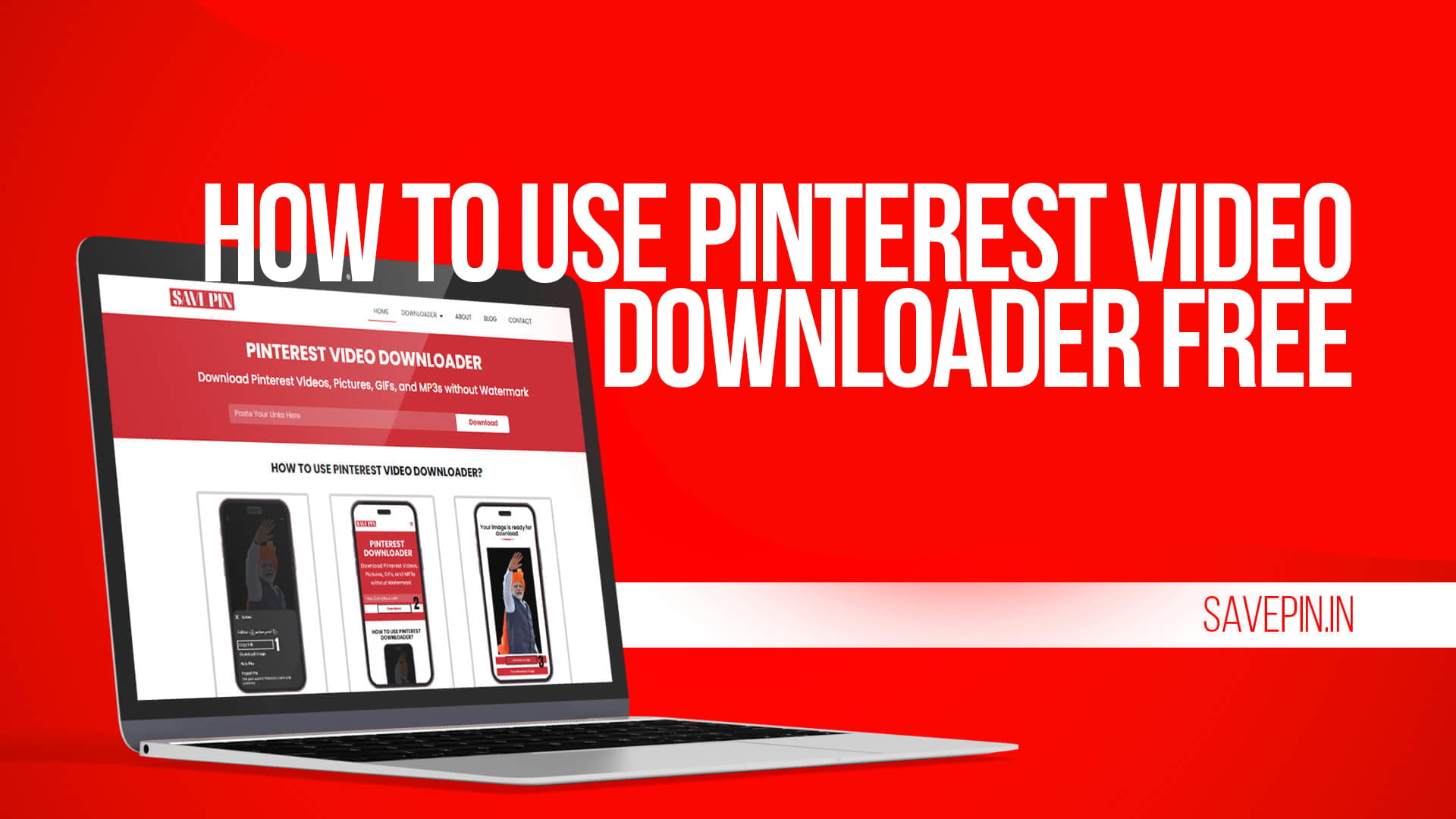
Pinterest is one of the best places on the internet to discover ideas. Interior design boards, recipe collections, fashion inspiration, fitness routines, travel guides, DIY projects — the content there is genuinely useful. But once you find something worth keeping, Pinterest does not make it easy to save a video or image outside the platform.
You can pin things to your boards. That keeps them inside Pinterest. But if you want the actual file — a video saved to your phone, an image stored on your computer — Pinterest gives you no straightforward way to do that.
That is where Save Pin comes in. Save Pin is a free online tool at Savepin that lets you download Pinterest videos and images directly to your device. No account needed, no payment, no app to install. This guide walks you through exactly how it works.
Why Pinterest Does Not Have a Built-In Download Option
Pinterest is a visual discovery platform. Its model depends on users coming back regularly to browse, pin, and engage with content. If it gave everyone a simple way to download everything and leave, the platform loses the engagement it is built around.
So the download option is either missing entirely or limited to a few specific cases. You can save your own uploaded content in some situations, but for videos and images posted by other accounts, there is no native download button.
This is the same logic behind most social platforms — Instagram, X, TikTok — none of them make downloading easy by default. The content lives on their servers, under their ecosystem, where they can show you ads and track behavior.
For anyone who needs the actual file, not just a saved pin, a tool like Save Pin is the answer.
What Is Save Pin?
Save Pin is a free Pinterest downloader available at Savepin.in. It works entirely in your browser. There is no software to install and no account to set up.
Here is what it supports:
- Pinterest Videos — Any video pin from a public Pinterest board or profile
- Pinterest Images — Photos and graphics pinned to public boards
- GIF Pins — Animated content saved as GIF or video format
- High-resolution downloads — Where the original content is high quality, Save Pin fetches it that way
The tool is free to use. Visit Savepin, paste a pin link, and download. That is the complete workflow.
How to Use Save Pin to Download Pinterest Videos
If you have not used a Pinterest downloader before, the steps below cover everything. Once you go through it once, the whole thing takes under a minute.
Step 1: Find the Pin You Want to Download
Open Pinterest on your phone or in a browser. Browse to the video or image you want to save. You can find content through the home feed, a search, or someone else’s public board.
Click or tap the pin to open it fully. You want the individual pin page, not just the thumbnail view in a feed.
Step 2: Copy the Pin Link
On the Pinterest mobile app: Tap the share icon (usually an arrow or the three-dot menu at the top right of the pin). Look for “Copy Link” in the options that appear. Tap it — the URL is now on your clipboard.
On Pinterest in a browser: Look at the address bar at the top of your browser. The URL there is the pin’s direct link. Click on it and copy it. You can also use the share button on the pin page if there is one visible.
A Pinterest pin URL typically looks like this: https://www.pinterest.com/pin/123456789012345678/
Make sure you have the full link before moving to the next step.
Step 3: Open Save Pin
Open a new browser tab and go to Savepin. The page is clean and loads quickly. You will see an input box in the center — that is where the link goes.
Step 4: Paste the Link
Tap or click inside the input box. Paste the link you copied.
- On mobile: long-press the text field, then tap “Paste”
- On desktop: press Ctrl+V (Windows) or Cmd+V (Mac), or right-click and select Paste
Step 5: Click the Download Button
Once the link is in the field, tap or click the Download button. Save Pin will process the URL and pull the media from Pinterest’s servers. This usually takes just a couple of seconds.
Step 6: Save the File
After processing, you will see a download option. For videos, click or tap the download link to save the MP4 file. For images, the file will be a JPG or PNG, depending on the original format.
On phones, downloaded files usually go to your Downloads folder or camera roll. On desktop, they go to your default Downloads folder or wherever your browser is configured to save files.
Downloading Pinterest Videos Specifically
Videos on Pinterest work just like regular pins from a URL perspective. The page address looks the same whether the pin is a static image or a video. Save Pin identifies the content type automatically once you submit the link — you do not need to do anything different for videos versus images.
When a video has multiple resolution options available, Save Pin may present those choices so you can pick the quality that suits you. Picking the highest quality option gives you the best version of the video.
A couple of things to keep in mind:
Video quality depends on the original upload. Pinterest compresses and re-encodes video content when users upload it. Save Pin can only download what Pinterest has. If a video was originally uploaded in standard definition, the download will be standard definition. But where the original is HD, that is what you get.
The file format is MP4. MP4 is compatible with essentially every device and media player — phones, tablets, smart TVs, laptops, and editing software. You should not need to convert it.
Private boards are off-limits. If a pin is on a private board or belongs to a private account, Save Pin cannot access it. The tool only works with publicly available content.
Downloading Pinterest Images
Save Pin works just as well for images as it does for videos. Pinterest is primarily an image-sharing platform, and the ability to download a high-resolution version of a pin is one of the most useful things Save Pin offers.
When you download an image through Save Pin, you get the highest resolution version that Pinterest serves for that pin. For many pins — especially photography, art, infographics, and design work — the resolution is quite good.
The same process applies: open the pin, copy the link, and paste it into Savepin.in, and download. The file saves as a JPG or PNG, depending on the original format.
Does Save Pin Work on Mobile?
Yes. Savepin is designed to work on any device with a browser. The interface adjusts to different screen sizes, so using it on a phone is just as smooth as using it on a desktop.
Tested working on:
- iPhone — Safari, Chrome, Firefox
- Android — Chrome, Samsung Internet, Firefox, Opera Mini
- iPad and Android tablets
- Windows — Chrome, Edge, Firefox, Brave
- Mac — Safari, Chrome, Firefox
No app installation is required. You open the website, paste a link, and download. The whole process happens inside the browser.
For iPhone users: Safari on iOS sometimes opens the downloaded file in a new tab rather than saving it directly. If that happens, long-press the video or image in the tab and look for “Save to Photos” or “Download Linked File.” Using Chrome on iPhone often gives a more direct download experience.
Is Save Pin Free?
Yes, completely. Save Pin does not charge for downloads, does not require a subscription, and does not limit you to a certain number of free downloads before asking you to pay. There is no registration required either — you do not need to enter an email address or create a profile.
Go to Savepin, paste a Pinterest link, and download. Nothing more is required.
Is Save Pin Safe to Use?
When using any third-party tool online, it is sensible to think about safety. Here is what you need to know.
Save Pin processes the link you paste into it. You are not uploading files or sharing personal information. The tool fetches the media from Pinterest’s public servers using the URL you provided.
At no point does Save Pin ask for your Pinterest login credentials. This is important: no legitimate Pinterest downloader ever needs your username or password. If any tool asks for that, close the page immediately. Save Pin does not do this.
Practical safety habits to follow:
- Make sure you are on the correct URL: Savepin.in
- Do not enter any personal account details
- Keep your browser updated, as modern browsers have built-in protections
- The file you download is a standard media file — the same content visible on Pinterest’s public pages
There is no software being installed, no extension added to your browser, and no account being created. You visit the page, paste a link, and get a file.
What People Use Save Pin For
The use cases for a Pinterest downloader are more varied than you might expect.
Saving DIY tutorials. Pinterest has some of the best DIY content anywhere online. Project instructions, measurements, material lists — when a video tutorial shows you exactly how to build something, saving it offline means you can watch it in the workshop without needing your phone connected to the internet.
Collecting design inspiration. Designers, decorators, and creative professionals often build reference libraries from images found online. Save Pin lets you download Pinterest images in their full resolution for use in mood boards, client presentations, or personal reference folders.
Keeping recipes and meal plans. Food content on Pinterest is incredibly popular. Cooking videos and recipe infographics get downloaded and saved to recipe folders on phones or tablets so they are easy to access while cooking, even without an internet connection.
Archiving your own pins. If you have been using Pinterest for years and have built up boards you care about, the content on those pins is only as permanent as the accounts that posted it. Original posters can delete content, deactivate accounts, or move on. Downloading pins you genuinely value is a form of personal archiving.
Fitness and workout videos. Workout Pins — short exercise demonstration videos and full routine guides — are very popular on Pinterest. Saving them to your phone lets you follow along at the gym or outdoors without needing a signal.
Educational content. Infographics, language learning aids, study charts, historical images, scientific diagrams — Pinterest hosts a surprising amount of genuinely educational material. Teachers, students, and self-learners download these for offline study and classroom use.
Travel planning. Destination photos, itinerary pins, packing lists, travel tips — people building trip plans often want to save reference images and videos to a dedicated folder for planning purposes.
Tips for Getting the Best Results
A few habits that make using Save Pin more reliable:
Use the direct pin URL, not a board URL. Save Pin works with individual pin links, not board pages. If you copy the address of a Pinterest board (which looks like pinterest.com/username/board-name/), it will not work. You need the URL of the specific pin — the page that shows just one pin with its description.
Check that the account is public. Before trying to download, verify that the account is not set to private. If a profile has a padlock icon or requires a login to view, its content cannot be accessed by Save Pin.
Tap the pin to open its full page first. From a feed view or board view, the URL in the address bar might not be the pin’s direct link. Tap or click the pin to open the full pin page — then copy the URL.
Use WiFi for larger video files. Longer Pinterest videos can produce larger files. Downloading on WiFi is faster and does not use up mobile data.
Download when you see something worth keeping. Pinterest content disappears regularly — pins get deleted, accounts close, boards go private. There is no way to predict when a pin will vanish. If something is genuinely useful to you, saving it promptly is smarter than counting on it being there later.
Common Problems and Solutions
“Link not working” or error message when pasting: Make sure you copied the full Pinterest pin URL. It should start with https://www.pinterest.com/pin/ followed by a long number. Board URLs or search result pages will not work — only individual pin pages.
The download opens in a new tab instead of saving: This is common in Safari on iPhone. Long-press the media in the new tab and select “Save to Photos” or “Download Linked File.” In Chrome on iPhone or most Android browsers, the download happens more directly.
The downloaded image looks lower quality than it appeared on Pinterest: Pinterest displays images at screen resolution in the feed, but the actual pin file may be different. Save Pin downloads whatever resolution Pinterest serves for that pin. If the original pin was low resolution, the download will reflect that.
The video has no audio: Some Pinterest videos are silent by nature — slideshows, time-lapse clips, silent demonstration videos. If the original had no audio, the downloaded file will not have audio either.
The tool is slow: This is usually a connection issue. Large video files take more time on slower internet connections. Try again on a stronger WiFi signal.
Copyright and Responsible Downloading
Pinterest is full of content created by real people — photographers, designers, videographers, artists, and everyday creators who put genuine effort into what they share. Downloading that content comes with a responsibility.
The law in most countries treats downloading content for personal use differently from distributing it publicly. Saving a recipe video to watch offline while cooking is not the same as re-uploading that video to your own YouTube channel and claiming it as yours.
The responsible approach:
- Download for personal use — offline access, personal reference, private collections
- Do not re-upload, republish, or redistribute someone else’s content without permission
- If you want to share a great pin with someone, share the original Pinterest link — the creator gets the traffic and recognition
- Commercial use of downloaded content (using someone’s photo in your marketing materials, for example) requires explicit permission or a proper license
Save Pin is a tool. The content you download belongs to whoever created it. How you handle that content is your call.
Yes. Save Pin is free with no hidden fees, no subscription, and no download caps. You do not need to register an account or provide any personal details. Visit Savepin.in, paste your Pinterest pin link, and download — there is nothing else required.
Yes. Save Pin works in mobile browsers on both iPhone and Android. The process is the same as on desktop: copy the pin link from the Pinterest app, open Savepin.in in your browser, paste the link, and tap download. The file saves to your phone’s downloads folder or camera roll depending on your device and browser.
Videos download as MP4 files, which are compatible with virtually every device and media player. Images download as JPG or PNG depending on the original pin format. You should not need to convert any file after downloading.
Yes. Save Pin handles both videos and images. For image pins, copy the pin link the same way you would for a video, paste it into Savepin.in, and the image file will be ready to download. The tool fetches the highest resolution version Pinterest makes available for that pin.
The most common reason is that the pin is from a private account or private board, which Save Pin cannot access. Other reasons include copying an incorrect or incomplete link (make sure it is the individual pin URL, not a board or profile URL), or a temporary issue with your internet connection. Double-check the link format — it should look like https://www.pinterest.com/pin/ followed by a string of numbers.
Final Thoughts
Pinterest has some of the most useful and visually rich content on the internet. Recipes, design ideas, fitness plans, tutorials, travel inspiration — the kind of content people actually want to keep and return to. The platform just does not make saving that content to your device easy by default.
Save Pin solves that cleanly. Free, fast, no registration, works on every device. Whether you are downloading a cooking video to watch offline, saving a design reference image, or archiving your favorite pins before they disappear, the process takes less than a minute.
Copy the pin link. Paste it into Save Pin. Download and keep it.