
Pinterest is one of the most popular places on the internet to find visual content. Recipes, home décor ideas, travel inspiration, workout plans, fashion boards, DIY tutorials, art references — it is all there. Millions of people scroll through it every day, saving ideas and building collections.
But here is the thing that frustrates almost every Pinterest user at some point: the platform makes it surprisingly difficult to actually download the content you find there. You can save a pin to a board inside Pinterest, sure. But getting that video or image onto your own device — saved locally, usable offline, shareable outside the app — is not something Pinterest makes easy by design.
There is no built-in “Download Video” button for most content. If you try to do it through the app alone, you will hit a wall pretty fast.
That is why third-party Pinterest downloaders exist. And in 2026, they are better, faster, and easier to use than they have ever been. This guide walks you through exactly how to download Pinterest videos and images without any hassle — and explains why Save Pin is the tool most people end up relying on.
Why People Want to Download Pinterest Videos
Before getting into the how, it is worth understanding the why. Because the reasons people want to download Pinterest videos are pretty reasonable.
Offline access. Not everyone has reliable internet all the time. Saving a video tutorial locally means you can watch it while traveling, in an area with poor signal, or without burning through mobile data.
Content creation and reference. Designers, photographers, and content creators often use Pinterest as a mood board and reference library. Having videos and images saved locally makes them easier to organize and use in creative work.
Sharing outside Pinterest. Sometimes you find something on Pinterest that you want to send to a friend, post in a group chat, or share on another platform. Pinterest’s internal sharing tools only go so far.
Preserving content before it disappears. Pinterest content can be deleted by the original poster at any time. If there is a specific video you want to keep — a recipe demo, a fitness routine, a craft tutorial — downloading it is the only way to make sure it stays accessible to you.
Educational and personal use. Students, teachers, and hobbyists often collect instructional content from Pinterest. A local copy is simply more practical than relying on a saved pin staying live indefinitely.
None of these are unusual reasons. Most people just want to use the content they find in a way that works for them, and Pinterest’s built-in options do not always cover that.
The Challenge: Why You Cannot Just Right-Click and Save
On a regular webpage, you can often right-click a video or image and save it directly. Pinterest does not work that way.
Pinterest uses its own media hosting system, and videos are embedded in a way that prevents direct right-click saving on most browsers. The video plays inside the Pinterest interface, but the actual file is stored behind multiple layers that your browser’s default save function cannot easily reach.
On mobile, it is the same story. The Pinterest app lets you save pins to boards, but there is no download-to-device option for video content built into the app for most users. You can screenshot a still frame, but that is not the same as having the video.
This is not a technical accident. It is partly by design — Pinterest has commercial reasons to keep users inside its platform rather than downloading content off it.
Third-party downloaders work by retrieving the actual media file from Pinterest’s servers using the video’s URL and delivering it to you as a standard downloadable file. That is exactly what Save Pin does, and it does it well.
What Is Save Pin?
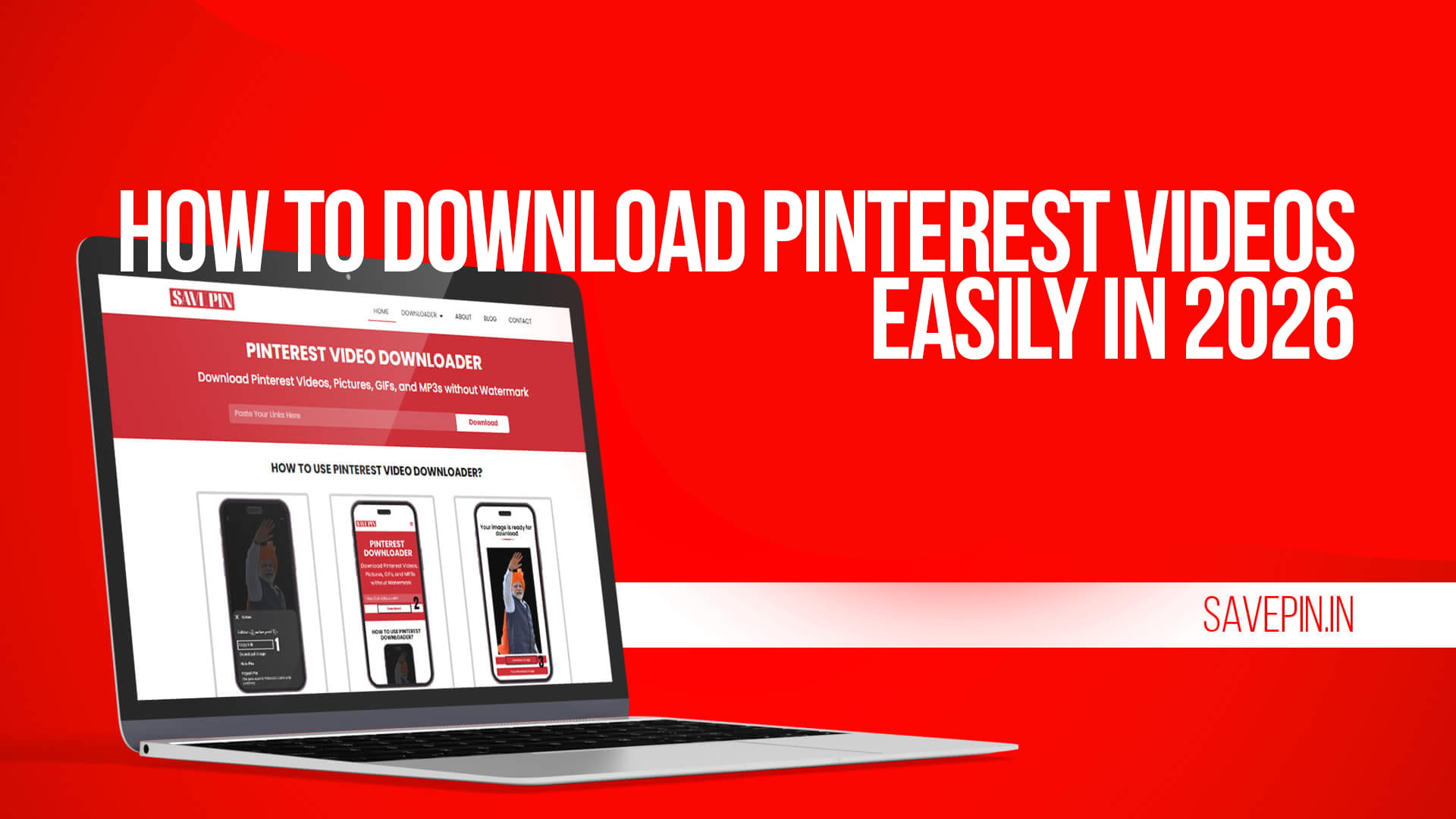
Save Pin is a free online tool for downloading Pinterest videos and images. You paste in the URL of any Pinterest pin, and it retrieves the media file so you can download it to your device.
It works on any device with a browser — desktop, laptop, tablet, or smartphone. There is no app to install, no account to create, and no cost to use it. You go to Save Pin, paste a link, and download.
The tool handles both video pins and image pins. Whether you found a time-lapse decorating video, a recipe walkthrough, a fashion lookbook clip, or just a high-quality image you want to save, Save Pin can retrieve it.
It also works on all major operating systems. Windows, Mac, Android, iOS — the process is the same because everything happens in your browser rather than through an installed application.
How to Download Pinterest Videos Using Save Pin — Step by Step
The process is straightforward. Here it is, spelled out clearly.
Step 1: Find the Pinterest video you want to download.
Open Pinterest in your browser or app. Scroll to the video you want. Click or tap on it to open the full pin view.
Step 2: Copy the pin’s URL.
On desktop: Look at the address bar in your browser. The URL will look something like pinterest.com/pin/123456789. Click the address bar to select the whole URL, then copy it.
On mobile (app): Tap the three-dot menu or the share icon on the pin. Look for an option that says “Copy link” or “Copy URL.” Tap it.
On mobile (browser): The URL is visible in the browser address bar. Tap it to select and copy it.
Step 3: Go to Save Pin.
Open a new browser tab and visit Save Pin. The interface is simple — there is a text field in the centre of the page waiting for your link.
Step 4: Paste the URL and click Download.
Paste the Pinterest URL you copied into the input field. Then hit the download button. Save Pin will process the link and retrieve the media file from Pinterest.
Step 5: Choose your download option and save the file.
Once Save Pin has retrieved the file, you will be shown download options. For videos, there may be quality options available. Select the one you want and tap or click the download button. The file will save to your device — usually to your Downloads folder on desktop, or your Photos/Files app on mobile.
That is genuinely all there is to it. No popups asking you to install software, no email fields to fill in, no credits or tokens to manage. Just paste, process, and download.
How to Download Pinterest Images Using Save Pin
The process for images is exactly the same as for videos. Pinterest image pins can also be surprisingly difficult to save at full resolution through normal means — the app often saves a compressed version, and right-clicking on desktop does not always give you the original file quality.
Save Pin retrieves the original resolution image from Pinterest’s servers. That means you get the highest quality version of the image, not a compressed thumbnail.
For photographers, designers, and anyone who collects visual reference material, this matters. A low-resolution image saved from a screenshot is not the same as the original high-res file.
Paste the pin URL into Save Pin the same way you would for a video. The tool detects that it is an image pin and gives you the image download option accordingly.
Using Save Pin on Mobile: Android and iPhone
A lot of Pinterest browsing happens on phones. Save Pin works cleanly on both Android and iPhone, through the browser, without needing any app download.
On Android:
Open the Pinterest app, find your video or image, and tap the share icon. Select “Copy link.” Then open your mobile browser (Chrome, Firefox, or whichever you use), go to Save Pin, paste the link, and download. The file will save to your Downloads folder or your Gallery, depending on your device settings.
On iPhone (iOS):
Open Pinterest, find the pin, and tap the share icon. Scroll through the share options to find “Copy link” or “Copy.” Open Safari or your preferred browser, go to Save Pin, and paste the link. After downloading, the file should appear in your Files app under Downloads, and you can move it to your Photos from there if needed.
On iOS, video downloads sometimes open in a browser preview tab rather than saving directly. If that happens, press and hold on the video until a menu appears giving you the option to save or download the file.
Does Save Pin Work for All Types of Pinterest Content?
Save Pin works for the most common types of Pinterest content:
Standard video pins — the most common type of video on Pinterest, usually short clips between a few seconds and a few minutes.
Idea pins (formerly Story pins) — these are Pinterest’s multi-page format. Save Pin can handle these as well, letting you download individual pages or the full set.
Static image pins — single images, photos, illustrations, and graphics.
GIFs — animated images that Pinterest hosts as video files can also be retrieved and saved.
The one category that behaves differently is video content that Pinterest is hosting from an external source, like an embedded YouTube clip or a linked video from another platform. In those cases, the video is actually hosted by the original platform, not Pinterest. Save Pin can identify the source, but you may get better results using a downloader specific to that platform for those particular pins.
For everything hosted natively on Pinterest — which is the majority of video content you will find there — Save Pin handles it reliably.
Tips for Getting the Best Results
A few practical things that make the process smoother:
Copy the full pin URL, not the short version. Some share options give you a shortened link like pin.it/abc123. Save Pin can usually handle these, but the full pinterest.com/pin/... URL works more consistently. If a shortened link does not work, try opening the pin in a browser first and copying the URL from the address bar.
Use a stable internet connection. Larger video files take a few seconds to process and download. A shaky connection can interrupt the process partway through.
Check your Downloads folder. On desktop especially, files sometimes save silently to the default Downloads folder without a visible notification. If you are not sure a download completed, check there.
For iOS users, know where your files go. iPhone handles downloads differently from Android. Files downloaded from a browser typically go to the Files app rather than your Camera Roll. You may need to move them manually if you want them in Photos.
If a download fails, try again. Pinterest occasionally serves content from different URLs for the same pin, and the first attempt might time out. A second try usually works.
What to Do With Your Downloaded Pinterest Content
Downloading is only half the job. Once you have videos and images saved locally, organizing them well makes them actually useful rather than just piling up in your Downloads folder.
Create a folder system that matches how you use Pinterest. If you save content across different interests — cooking, fitness, home design, travel — create a folder for each category. Name them clearly. A folder called “Kitchen Recipes – Videos” is infinitely more useful six months from now than a folder called “Downloads May 2026.”
Rename files when you save them. Files downloaded from Pinterest often have random-looking names like pinterest_video_1234567.mp4. Take five seconds to rename each file something descriptive before you forget what it is. “Chocolate lava cake tutorial.mp4” will save you a lot of searching later.
Back up your collection. Local files on your phone or computer can be lost if your device is damaged, stolen, or reset. If you are building a meaningful collection of reference content, back it up to cloud storage — Google Drive, iCloud, Dropbox, or an external hard drive. This is especially important for content you cannot easily find again if the original Pinterest pin disappears.
Keep a note of the original source. If you are a designer or creator using Pinterest reference material in your work, it is good practice to keep track of where content came from. A simple text file or spreadsheet with the original Pinterest URL next to a description of each saved file takes a minute to maintain and can save you a lot of time if you ever need to credit the source or find the original creator.
Delete duplicates. If you use Pinterest heavily and download regularly, you will accumulate duplicates over time. Occasional cleanup keeps your collection manageable. There are free duplicate file finders for both Windows and Mac if the task gets unwieldy.
Good organization turns a collection of downloaded files into a genuinely useful personal library. The five minutes you spend setting up a system at the start pays back every time you can find something instantly rather than hunting through a cluttered folder.
Is It Legal to Download Pinterest Videos?
This is a fair question and worth answering honestly.
Downloading Pinterest videos for personal, private use — to watch offline, to keep as a reference, to save something you found useful — sits in a grey area legally in most places, but in practice it is not something anyone is prosecuted for. Personal use downloading of publicly accessible content is treated differently from commercial redistribution.
What is clearly not acceptable is downloading content and then republishing it, claiming it as your own, selling it, or using it in ways that infringe on the original creator’s copyright. The person who made the video or image still owns it. Downloading a copy for your own use is different from taking someone’s work and passing it off as yours.
If you are using downloaded content in any public, commercial, or professional capacity, you need to think carefully about whether you have the right to use it. For personal, private use, the general consensus is that occasional downloading of publicly available content does not create legal problems for the downloader.
Save Pin is simply a retrieval tool. How you use the downloaded content is your responsibility.
Yes. Save Pin is free to use for both video and image downloads. There is no subscription, no credit system, and no paywall blocking basic features. You visit the site, paste a Pinterest URL, and download — that is the whole process at no cost.
No. Save Pin requires no registration and no login. You do not need to enter your email address or create any kind of account. The tool works immediately, without any sign-up process.
Save Pin works on all devices — desktop computers, laptops, tablets, Android phones, and iPhones. Everything runs through your browser, so there is no app to install. The process is the same regardless of which device you are using.
The most common reason is that a shortened link (like pin.it/...) was used instead of the full pin URL. Try opening the pin directly in a browser tab and copying the URL from the address bar — it should start with pinterest.com/pin/. That full URL works more reliably. If the issue persists, the pin may contain externally-hosted video rather than Pinterest-native video, which behaves differently.
Yes. Save Pin retrieves the original file from Pinterest’s servers, which means you get the full-resolution version of the image rather than a compressed or resized copy. This is one of the reasons people prefer using a dedicated tool like Save Pin over trying to right-click save or screenshot images directly from Pinterest.
Why Save Pin Is the Right Tool for 2026
There are quite a few Pinterest downloaders online. Some of them work, many of them are cluttered with aggressive ads, and a handful try to push you toward installing software you do not need.
Save Pin keeps it simple.
No registration. No app required. No suspicious software to install. It works in the browser on any device, processes links quickly, and delivers clean downloads without making you jump through hoops. It handles both videos and images from the same tool, so you are not switching between different sites depending on what you want to save.
For anyone who regularly saves content from Pinterest — whether you are a designer collecting visual references, a home cook saving recipe videos, a fitness enthusiast building a workout library, or just someone who found something they wanted to keep — Save Pin is the most straightforward way to do it.
Visit Save Pin, paste your first Pinterest link, and see how much easier the whole process becomes compared to anything you might have tried before.